

FAQs
Filter by Topic
Showing 61–70 of 107 Results
Blood glucose readings that have been synced from the meter cannot be deleted in the app; only manually entered blood sugar readings can be deleted.
The Averages mode lets you see blood glucose averages over a period; the Standard mode shows your individual blood glucose readings over a single day. For more information:
- Go to: Main Menu > My Readings
- Turn your mobile device sideways or tap the graph at the top of My Readings
- Tap 'i' at the top of Expanded Graph
Yes, if you have logged carbs and/or insulin dosing in the CONTOUR®DIABETES app, you can view this information next to each reading in the expanded graph. To do this, go to: Main Menu > My Readings.
- Turn your mobile device horizontal to see the expanded graph
- Tap the 'i' icon in the top left-hand corner of the screen
- In the 'Insulin/Carbs' column, select whether you want to view insulin, carbs or both on your graph
- Find the blood glucose reading in My Readings and tap it
- When the Edit screen opens, tap the round icons to add a Photo, Activity, Meal, medication, or write or record notes
- Tap 'Done' when you are finished
- Find the blood glucose reading in My Readings
- Tap the area around the time of the reading to open the details; tap again on the area around the time to close the details
To add a blood glucose reading manually, in the app go to: Main Menu > My Readings
- Tap '+' in the upper right corner of the screen. The system uses the current date and time in your mobile device for the new reading
- To change the date or time, tap the matching button and scroll to the desired date or time. Tap 'Done' to save your selection
- To enter a blood glucose value, tap the empty blood glucose reading button, type the number then tap 'Done'. The Meal Marker screen is now available
- The app pre-selects a Meal Marker and meal type based on the time of the reading. Tap 'Save' to confirm or tap another marker and/or meal type. Note: You can tap again on a Meal Marker or meal type to de-select it. You can tap 'No Mark' if you do not want a Meal Marker and meal attached to this reading
- Tap 'Save' when you are finished with Meal Markers
- The Edit screen displays so you can add details to your reading such as a photo, note, activity, meal or medication
- Tap 'Done' to save the manual reading
You can change blood glucose readings that have been entered manually, but not those automatically synced from your meter. To do this, tap the reading in My Readings. Here you can add details such as a picture, activity or medication. With the Edit screen open, tap the blood glucose reading again to add a Meal Marker to the reading.
- Find the manual blood glucose reading or the listed item in My Readings
- Swipe left across the reading and tap the red 'Delete' button that appears
Note that you can change blood glucose readings that have been entered manually, but not those automatically synced from your meter.
These symbols are Meal Markers. Meal Markers allow your meter and app to compare blood glucose readings against the related target ranges, and help you to see how different meals affect your blood glucose. You can select the appropriate marker on your meter or app each time you take a blood glucose reading. There are three variations of the apple symbol:
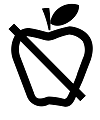
Fasting Meal Marker
Choose this if you are testing your blood glucose after about 8 hours without eating

Before-meal Meal Marker
Choose this if you are testing your blood glucose within 1 hour before a meal

After-meal Meal Marker
Choose this if you are testing your blood glucose within 2 hours after the first bite of a meal
The app provides Day Divider time periods for Breakfast, Lunch, Dinner and Overnight that you can change to fit your own schedule. For your convenience, the app pre-selects a meal type for you based on when you took the reading and the Day Divider it belongs to.
No Results Found
No More Results Found
An error occurred. Please try again later.